How to use BetterShell in ChatGPT and Claude
Add BetterShell to ChatGPT or Claude, then share your résumé and a job posting, or just the kind of role you want, and ask for a tailored résumé. The chat shows the finished page with what changed and why. Open it in BetterShell to edit any line and download the PDF. You don't need an account or a sign-in.
Add it to Claude
- Open Customize, then Connectors.
- Find BetterShell in the directory and connect it. Or choose Add custom connector, name it BetterShell, and enter
https://bettershell.ai/mcp. Choose no sign-in. - In a chat, turn BetterShell on from the + menu, under Connectors. The same menu offers two ready-made requests: Tailor my résumé to a job and Improve my résumé for a kind of role.
Add it to ChatGPT
- Find BetterShell in ChatGPT's plugin directory and add it.
- In a chat, type @BetterShell, or ask for help with your résumé and choose it.
What to ask
- "Use BetterShell to tailor my résumé to this job: (the posting's link)", with your résumé pasted or attached.
- "Use BetterShell to make my résumé stronger for product designer roles."
- "Use BetterShell to make a two-page version of my résumé for this senior role: (the posting's text)"
Some job sites can't be read from a link. If that happens, the chat asks you to paste the posting's text.
What happens next
- It may ask first. BetterShell picks your strongest material for the job, so the more it has to choose from, the better the page. If your résumé is short, it asks once whether you have more: other jobs, projects, coursework, results with numbers. Answer in your own words, or say to go ahead.
- The chat shows the page. You see the first page, a few of the lines it changed with the reason for each, and the posting's terms the page now shows.
- Open in BetterShell. Edit any line, rewrite one with AI, and download the PDF. After you download, you can keep the résumé in a BetterShell account to tailor it to your next job.
- Keep going in your chat. For your next application, share that job in the same chat. Already use BetterShell? Ask the chat to connect your BetterShell account, sign in on bettershell.ai, and every résumé after that is made on your account and saved there. Once you've made the résumés BetterShell makes without an account, the chat offers this itself.
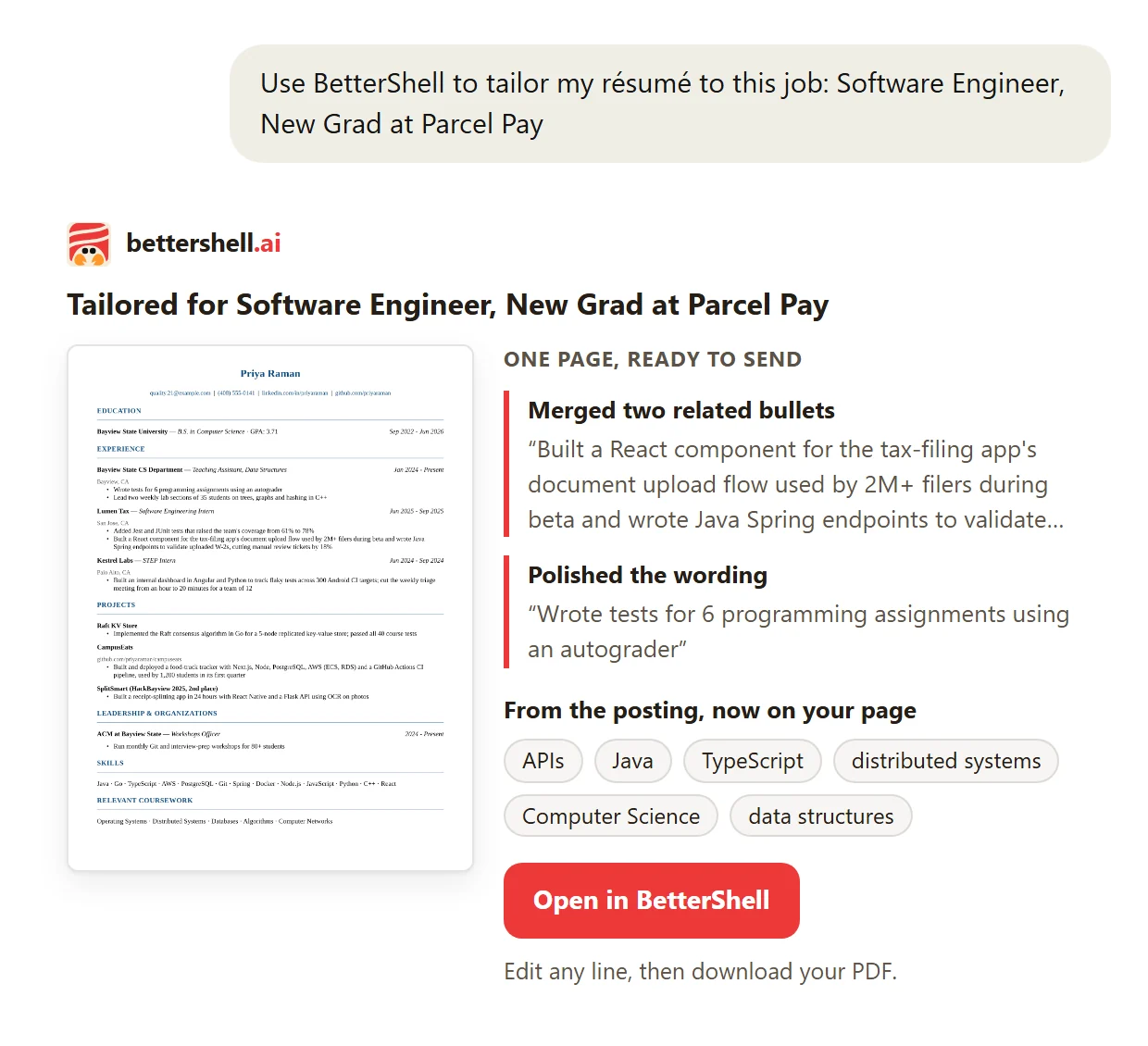
Example résumé of an invented person, Priya Raman, for an invented company. Not a customer.
What happens to your information
- Only what you share for the request. The chat sends BetterShell the résumé you shared and the job you chose. BetterShell doesn't receive your chat history, the chat's memory or anything else from the conversation.
- A private link for 7 days. The tailored résumé is stored behind a link that works for 7 days and is then deleted, unless you add it to a BetterShell account.
- No contact details kept. To limit how many résumés each person makes in a chat, BetterShell keeps one-way hashes of the email and phone number on your résumé and of the employers it lists, for 30 days (in ChatGPT, also of the anonymous ID ChatGPT sends), never the details themselves.
- The posting comes from the job site. If you give a link, BetterShell fetches the posting from that site.
- A connected account stays yours. If you connect your account, the chat keeps a sign-in token that works only for making résumés: it can't open your profile or your saved résumés. You can disconnect BetterShell in the chat's settings at any time.
The privacy policy has the details. To have a résumé deleted sooner, or with any question, email support@bettershell.ai.